


Not Received Process
Securely update your account password to regain access and protect your information.
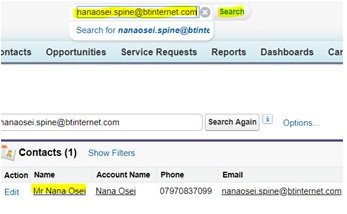
In SFDC, enter the customer’s email address in the search bar at the top of the page. When the search results appear, click on the customer’s name to open their record.
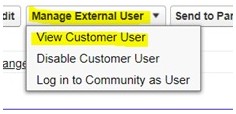
Click the drop-down menu Manage External User and then select View Customer User.
Click on Reset Password

Email customer ‘Safe Sender List’ email: A reset password link has been sent to you.
Please follow the link to reset your password.
If you do not receive the email within 10 minutes, could you please ask your IT team to add digitalsolutions@eur.neopost.com to your Safe Sender / Approved Sender list and allow the following domains: neopost.com neopost.co.uk bnc.salesforce.com
Once this has been done, please email customerforlifeteam@neopost.co.uk , and they will send you a new set password link.
You will need to raise an SR (Service Request) in SFDC after each set password request.
Please follow the steps below:
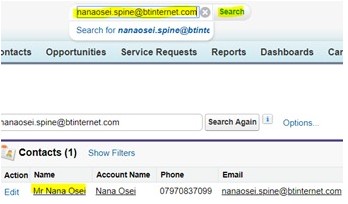
Step 1: Search for the customer’s email address in SFDC using the search bar at the top of the page.
Step 2: Once the results load, click on the customer’s name to open their record.
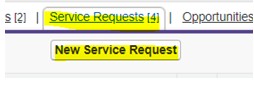
Step 3: Hover over “Service Requests” and click on “New Service Request.”
Step 4: Ensure that the Account Name field is auto-filled with the customer’s details. From the “Service Request Origin” drop-down, select the customer’s form of communication:
-Phone
-Email
-Website (Chat)

Step 5: Complete the Title field:
-MyQuadient – Reset password – not received
Step 6: Click the “MyQuadient” box and select “MyQuadient” from the drop-down menu.
In the Comments section, type a summary of the actions you performed for the customer.
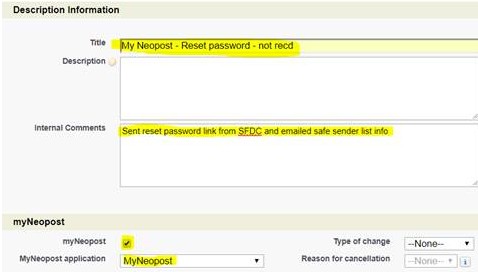
Step 7: Click Save & Close.

Step 8: Select “Complete” and “Advised in Writing” from the drop-down menus. Enter any additional notes in Internal Comments.
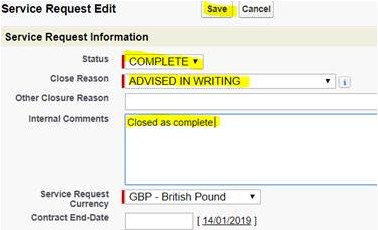
Step 9: Click Save.