Rate Management
-Email Templates Update-
At the end of a rate change process, when the new rate is available on OLS server, before pushing it to your customers, your IPSS contact will generally ask for your confirmation that the email templates are updated. Please make sure that you follow the process below to update your email templates for rate change.
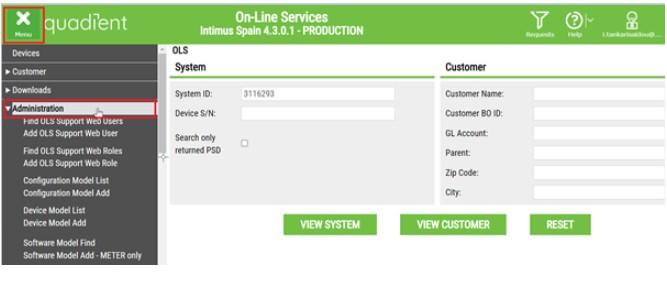
From the homepage of your OLS, click on the Menu Button and then on Administration
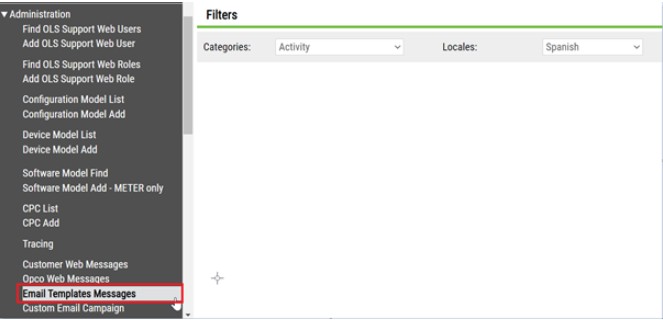
Click on Email Templates Messages.
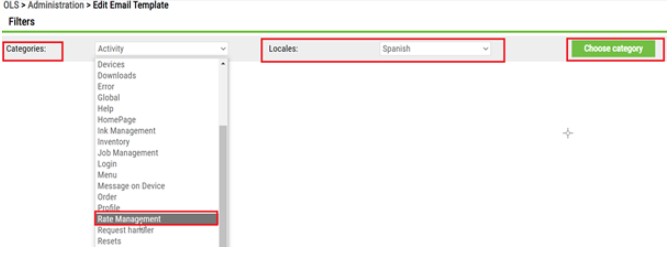
As Category, select Rate Management then select your local language and then click on Choose Category
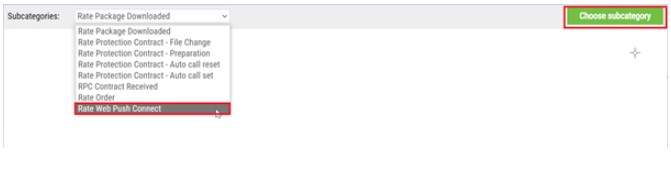
As Subcategory, select Rate Web Push Connect and then click on Choose Category
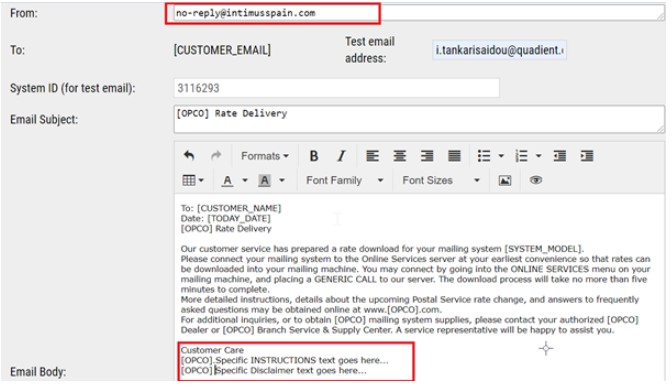
You will have access to the email template below, and you can edit that as you want:
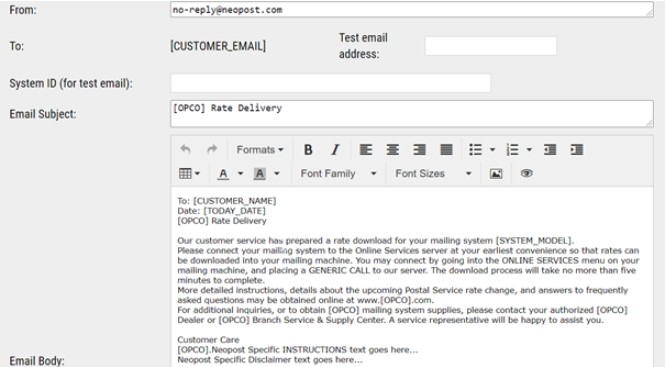
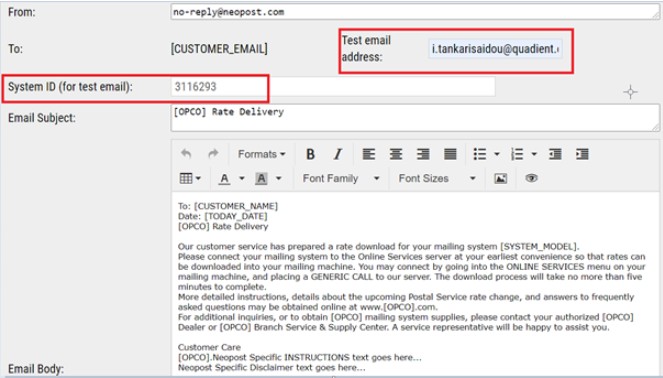
Before validating the trigger of the rate with your IPSS contact, you can perform a test to check how the customers will receive the email information. To do that, you need to fill in the Test Email Address and the System ID for Test:
Click on Send Test Email
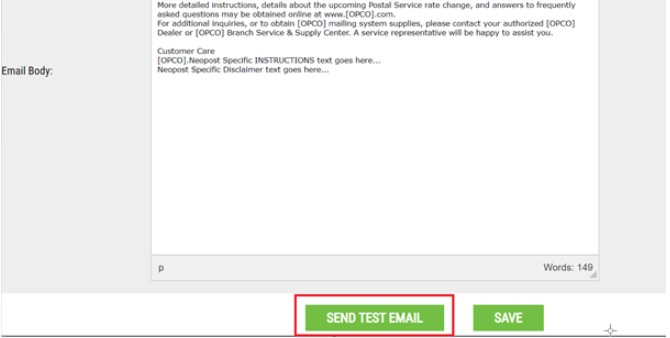
The email address filled in will receive the email below:
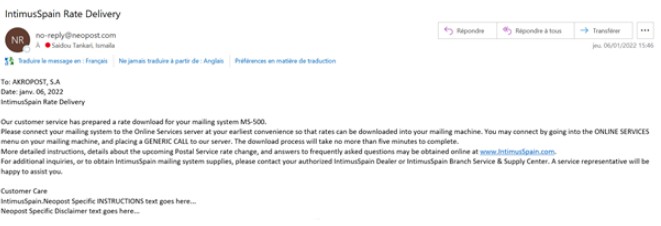
If you are an independent distributor with your own brand like Intimus or Frama and you don’t want your customers to see any indications with Quadient and Neopost, you can edit the Sender Email Address, and the Email Signature as indicated below:
When you click on Send Email Test, you will receive the email below with no indications of Quadient or Neopost.
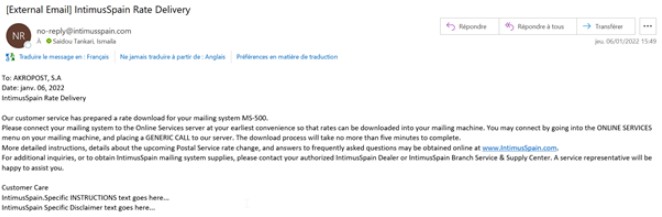
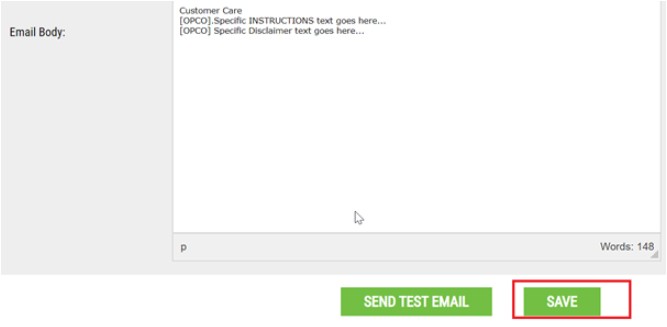
If everything is okay, you can Save the modifications so that your customers will receive the same email information than you received for test as soon as the new rate table will be triggered.