Copy Invoice Process
Step 1: MyQuadient – Invoice & Registration Guide
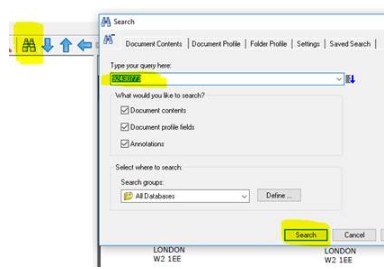
1. Check if the Invoice is Available in Alchemy Click on the ‘binoculars’ icon.
2. Enter the invoice number in the box provided.
3. Click ‘Search’. If the invoice is available, it will load as a PDF.
Step 2: Check Customer Registration in MyQuadient
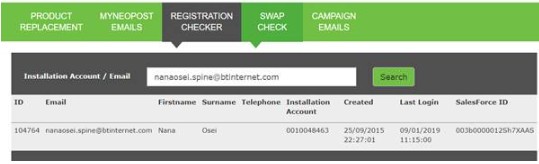
Visit: Registration Checker
Enter the customer’s email address.
This will also display the account number the customer is registered to.
Step 3: Customer Already Registered
a. Registered to Correct Account Number
Advise the customer to log in at: MyQuadient Login
Navigate to the invoice page:
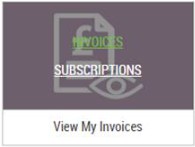
Hover over ‘View My Invoices’ and click ‘INVOICES’
b. Registered to a Different Location (Add Location)
From the main home page, hover over ‘View My Invoices’ and click ‘INVOICES’.
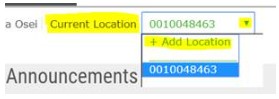
The current location will display in the middle of the invoice page.
Select the drop-down box and click ‘Add Location’.
Provide the customer with their:
- Account number
- Postcode
(Details can be obtained from the invoice (delivery account) or Siebel.)
Step 4: Customer Not Registered
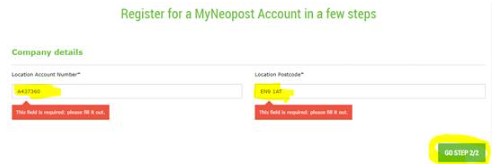
a. Ask the customer to visit: MyQuadient Login and click Register.
b. They will be prompted to enter:
- Account number
- Postcode
(Obtain these details from the invoice or Siebel.)
c. Click ‘Go STEP 2/2’.
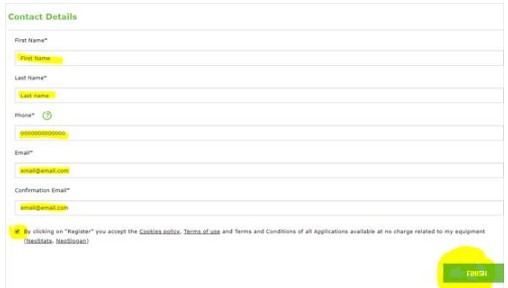
d. Customer completes all required information on the registration page.
e. After clicking ‘Finish’, the customer will receive a set password link within 10 minutes.
- Ask them to follow the link to log in.
f. Once logged in, navigate to invoices:
- Hover over ‘View My Invoices’
- Click ‘INVOICES’