


Business apps error message process
Request that the customer email a screenshot of the Business Application Error Messages to CustomerForLifeTeam@neopost.co.uk .
Ensure that all screenshots include: Time and date stamp (bottom right corner of the PC) The email address used to log into MyQuadient.
Once the screenshot is received, email the customer using the TLS settings email template.
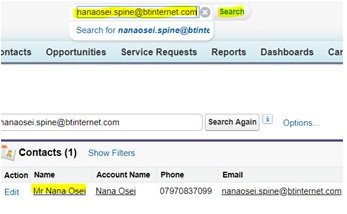
Raise a Service Request (SR) in SFDC: Search for the customer’s email address using the search bar at the top of the SFDC page.
When the results appear, click on the customer’s name to open their record.
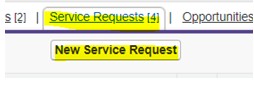
Hover over “Service Requests” and click on “New Service Request.”
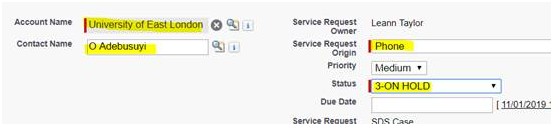
Ensure that the Account Name field is auto-filled with the customer’s details. From the “Service Request Origin” drop-down, select the customer’s form of communication:
-Phone
-Email
-Website (Chat)
Change the ‘Status’ to ‘On-Hold’
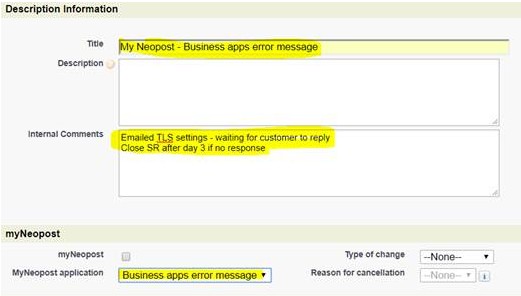
Complete the Title field: -MyNeopost – Business apps error message.
In the Comments section, type a summary of the actions you performed for the customer.
Select ‘Business apps error message’ from drop-down
Click Save.
Note: The Service Request (SR) will remain in your name while waiting for a reply from the customer.